Remotes
You can steer trains from a phone, tablet or physical remote with a Z21 app, ROCO Z21 WlanMaus, Engine Driver or WiFred. BigFred uses the same roster and permissions as the BigFred throttle view — you only drive locomotives you are allowed to use on the layout.
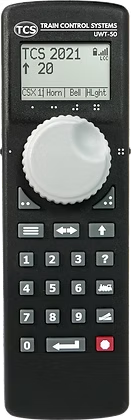
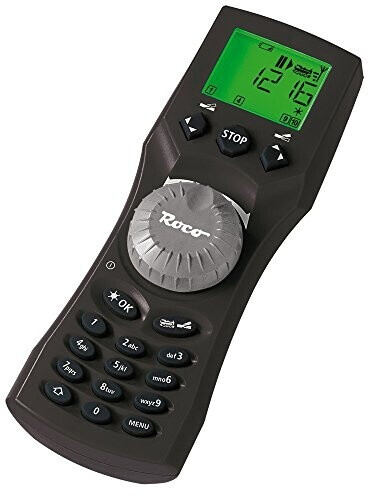
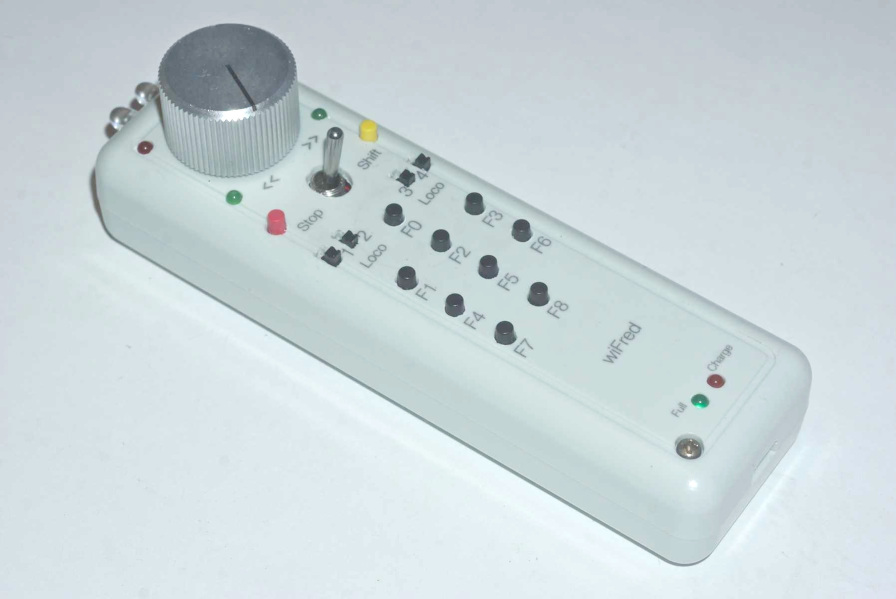
Open the pairing page
- Open Menu → My → Handsets.
- Choose the command station for your layout.
- Under Vehicle scope, either tick All vehicles I have permission to drive on this layout, or pick specific locomotives.
- Click Generate pairing code.
The page shows a code and short instructions for your app type. Codes expire after a few minutes — generate a new one if needed.
If no command station appears, ask whoever runs BigFred at your club to enable handset support for your layout.
Z21 app
- On the pairing page, open the Z21 app tab and note CV3 and CV4.
- In the Z21 app, connect to BigFred using the address your club uses (the same one shown on the pairing page).
- On any locomotive — it does not matter which you choose; no CV values are sent to a real locomotive — open programming and enter CV3 and CV4 with the values from BigFred.
When pairing works, the page shows Paired.
ROCO Z21 WlanMaus
Pairing with the keyboard
- Open any locomotive
- Enter your pairing code with the keyboard (e.g. 168421 -> F1 F6 F8 F4 F2 F1)
Engine Driver / WiThrottle
- On the pairing page, open the WiThrottle / Engine Driver tab and note the pairing code.
- In the app, connect to BigFred using the address your club uses.
- Complete pairing in one of these ways:
- set Device name to the six-digit code (no spaces), or
- from the loco list, select Pair with BigFred and press function keys
F0–F9 once per digit (for example code
122145: F1, F2, F2, F1, F4, F5).
When pairing works, the page shows Paired. You can then choose a real locomotive from the roster.
While you drive
- Keep the app open and connected. If it stays idle too long, BigFred ends the session and may brake your trains — pair again if that happens.
- You can change which locomotives you may drive on the pairing page and click Save without generating a new code.
- When you finish, use Disconnect handset on the pairing page or close the app normally.
Something wrong?
| Problem | What to try |
|---|---|
| No command station in the list | Ask your club’s BigFred operator to enable handsets for this layout. |
| Pairing code expired | Generate a new code on the pairing page. |
| The loco does not move | Check that it is on the layout roster and included in your allowed vehicles. |
| Connection dropped | Open the app again on the same Wi‑Fi and pair once more. |